How to use KeyTup
KeyTup is the POS, khata and stock book for building-material dealers: steel and sariya, cement and bricks, hardware, sanitary, paint, electrical, tiles and timber. This guide walks through every screen, in the order a shop usually needs them. The pictures show a demo shop, Madina Steel & Cement Traders.
Need help? Tap the WhatsApp button on keytup.com or email us. You can also switch this guide to Urdu.
Getting started
Sign up
- Go to app.keytup.com/register (or press Start free on keytup.com).
- Enter your name, email and a password. That is your own login.
- Next time, sign in at app.keytup.com with the same email and password.
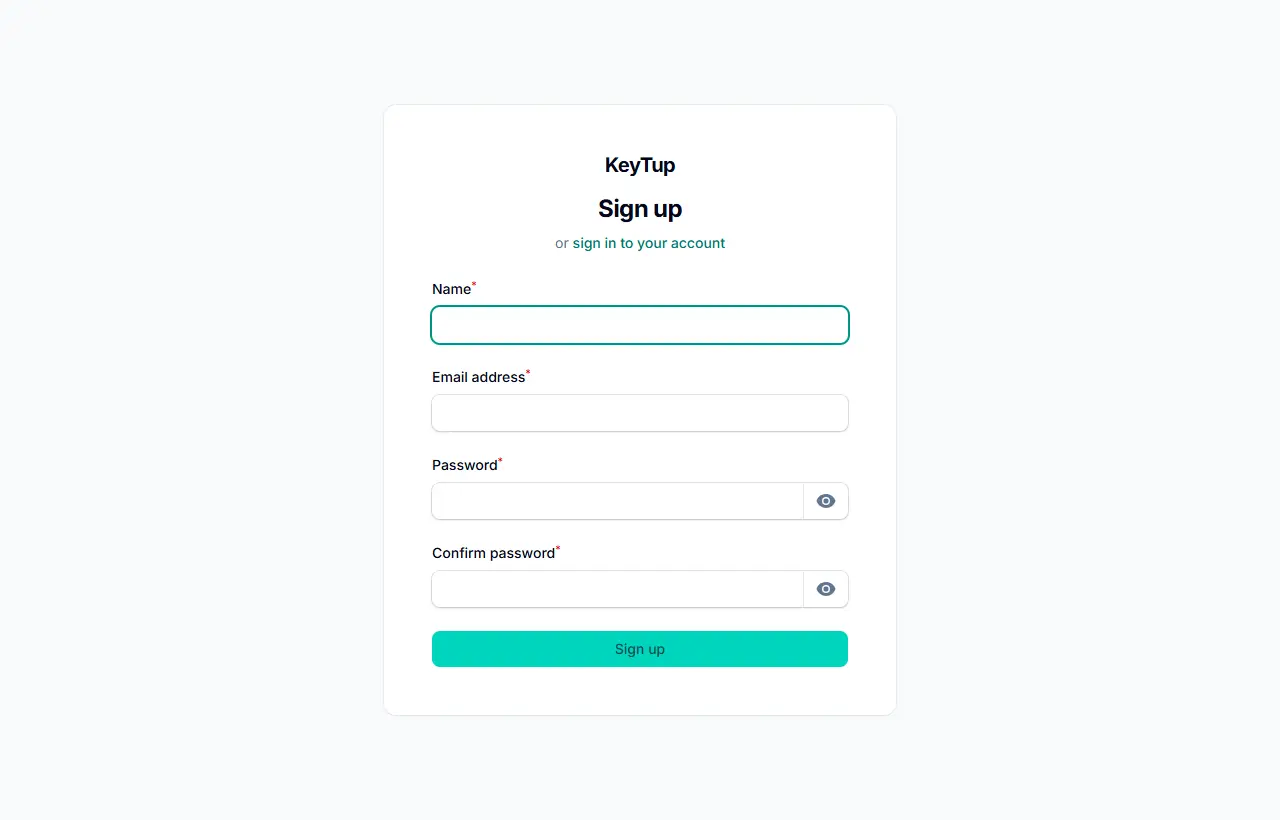
Every new shop gets 14 days free with all the main features. No card is needed.
Set up your business
After signing up, KeyTup asks for your business name, type of business, city and phone.

The type matters: KeyTup adds the units and categories that trade uses. A steel dealer gets kg, maund and ton with Sariya, Girders & angles; a cement dealer also gets cft, trolley and thousand (bricks); tiles get sq ft; paint gets gallon and drum. You can change all of it later.
One login can run several businesses (for example two shops with separate accounts). Use the business name at the top of the menu to switch between them or add another.
Finding your way around
- The menu on the left has everything, grouped into Selling (top), Inventory, Buying, Parties, Reports and Setup. On a phone, open it with the ☰ button.
- The search box at the top finds products, customers and suppliers, invoices, quotations, challans, purchases and payments.
- Your initials (top right) open your menu: your profile, light or dark screen, اردو / English, the Help guide and Sign out.
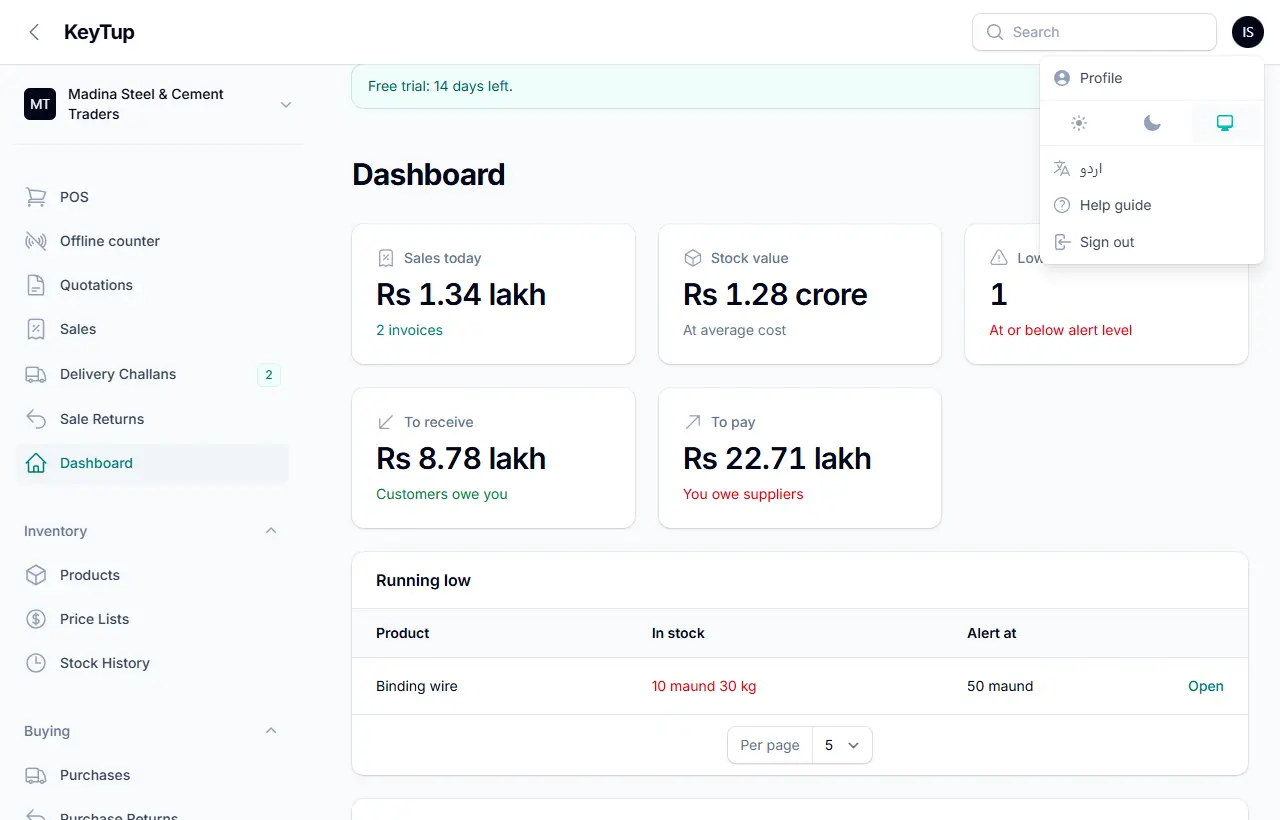
Urdu: press اردو in your menu and the whole app, including invoices if you choose, switches to Urdu, right to left. Each person in your team can choose their own language.
Dashboard
The dashboard is your shop at a glance.
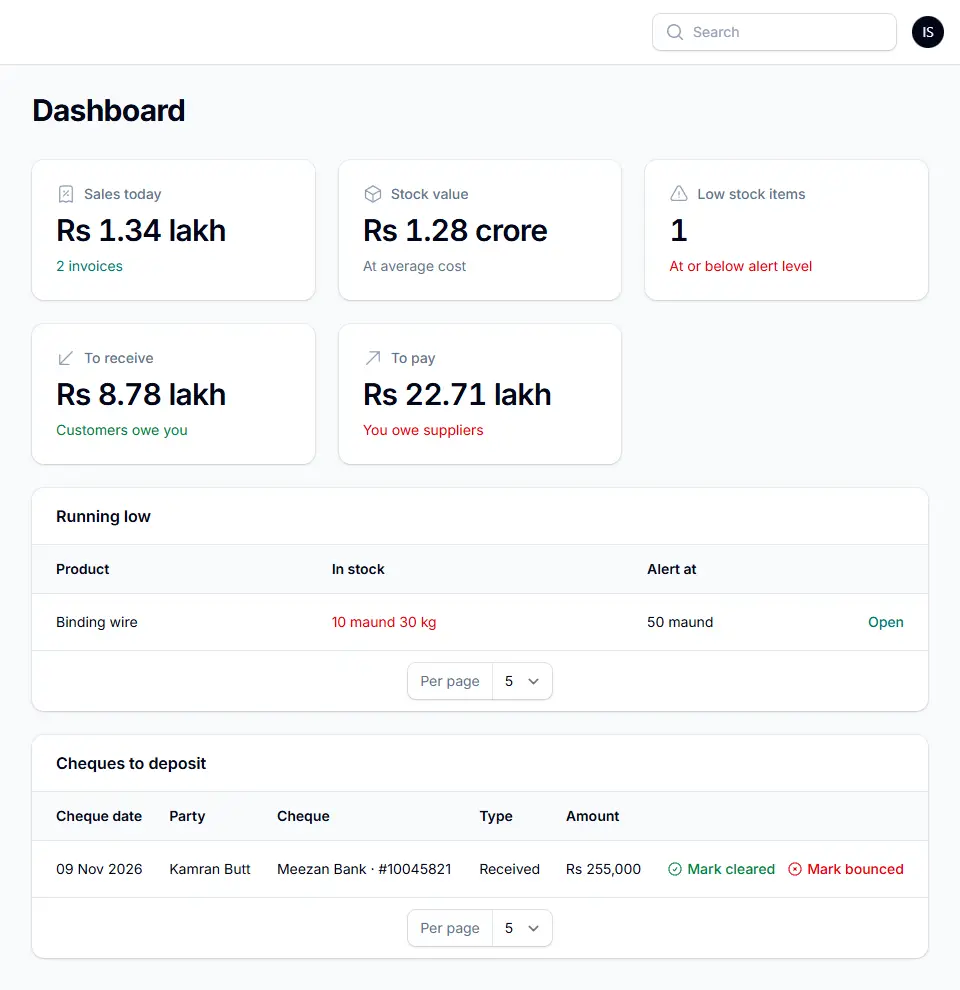
- Sales today: total and number of invoices.
- Stock value: everything in stock, at average cost.
- Low stock items: products at or below their alert level, listed under Running low.
- To receive: what customers owe you. To pay: what you owe suppliers.
- Cheques to deposit: post-dated cheques coming due, with Mark cleared and Mark bounced.
- For new shops, a Getting started checklist: shop details, products, opening stock, customers with old balances, first sale, team.
Who can do what
Each person in your team has their own login and a role:
| Owner | Manager | Cashier | |
|---|---|---|---|
| Sell on the POS, quotations, challans | ✓ | ✓ | ✓ |
| Receive payments, add customers, record expenses | ✓ | ✓ | ✓ |
| Sell over a customer's credit limit | ✓ | ✓ | – |
| Cancel sales, record returns | ✓ | ✓ | – |
| Products, prices, price lists, stock changes | ✓ | ✓ | – |
| Purchases and supplier returns | ✓ | ✓ | – |
| Reports, payment reminders, Plan & billing | ✓ | ✓ | – |
| Business settings, shops & godowns, team | ✓ | – | – |
Selling
Point of sale (POS)
Open POS from the top of the menu. This is where most of the day is spent.
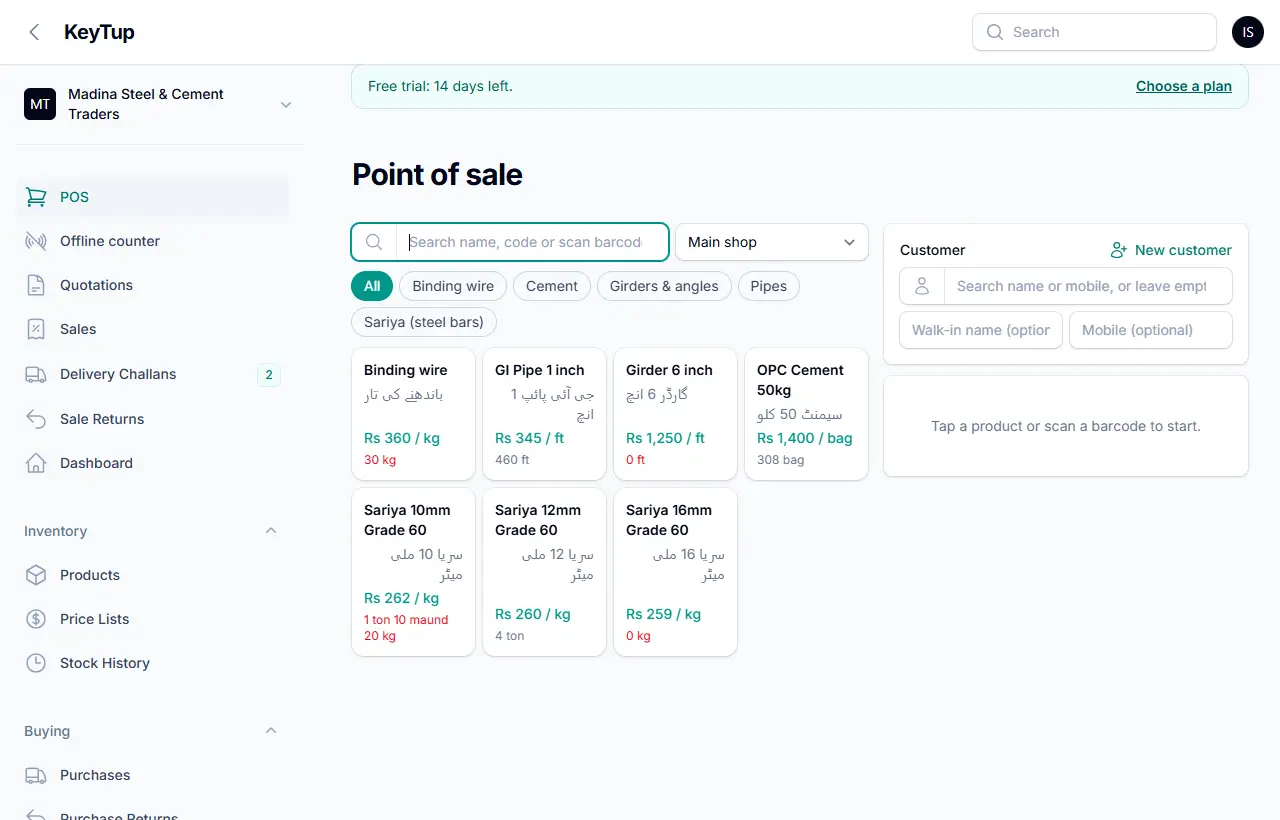
Make a sale:
- Find the product: type part of the name or code, scan a barcode, or tap a category. Tap a product to add it. Each tile shows the price and how much is in stock.
- Set quantity and unit: every line has its own unit, so you can sell sariya by the ton, maund or kg on the same bill. Change the price if you agreed a different rate; KeyTup warns in red if it is below cost.
- Choose the customer: search by name or mobile. Their khata balance and remaining credit show at once. Leave it empty for a walk-in (you can still type a name and mobile). You can also add a New customer from here.
- Add charges: tap + Loading, + Cutting, + Bending, + Delivery (kiraya) or your own charges, and enter the amount. Add a discount if needed.
- Take payment: choose Cash, Bank, JazzCash, Easypaisa, Cheque or Udhaar and enter the amount received. KeyTup shows the change to return, or how much goes to khata.
- Press Complete sale.

The total is rounded to the rupee (Round off). If your business adds sales tax, it shows separately.
Rules that protect you:
- Walk-in sales must be paid in full. To sell on credit, choose the customer.
- Credit limit: if a sale takes the customer over their limit, a cashier cannot complete it; a manager or owner can tick Allow anyway.
- Cheques are added to the khata only when you mark them cleared (see Payments & cheques).
- If the customer has a price list, their rates are filled in automatically.
After the sale you can print the Receipt (80 mm thermal printer) or the Invoice (A4), or send it on WhatsApp.
Quotations from the POS
Fill the POS as for a sale and press Save as quote instead. Choose a valid until date. The quotation can be printed or sent on WhatsApp, and when the customer agrees, Make sale turns it into an invoice in one tap. See Quotations.
Deliver now, bill later
For contractors who take goods many times and pay at month end: choose the customer, add the items and press Deliver now, bill later. Enter the vehicle number, driver and delivery address. KeyTup saves a delivery challan: the goods leave stock now, and later you put all that customer's challans on one invoice. See Delivery challans.
Printing and sharing
Every sale has two printouts:
- Receipt: narrow, for an 80 mm thermal printer at the counter.
- Invoice: A4 sales tax invoice with your letterhead, amount in words, and (when FBR is on) the FBR invoice number and QR code.

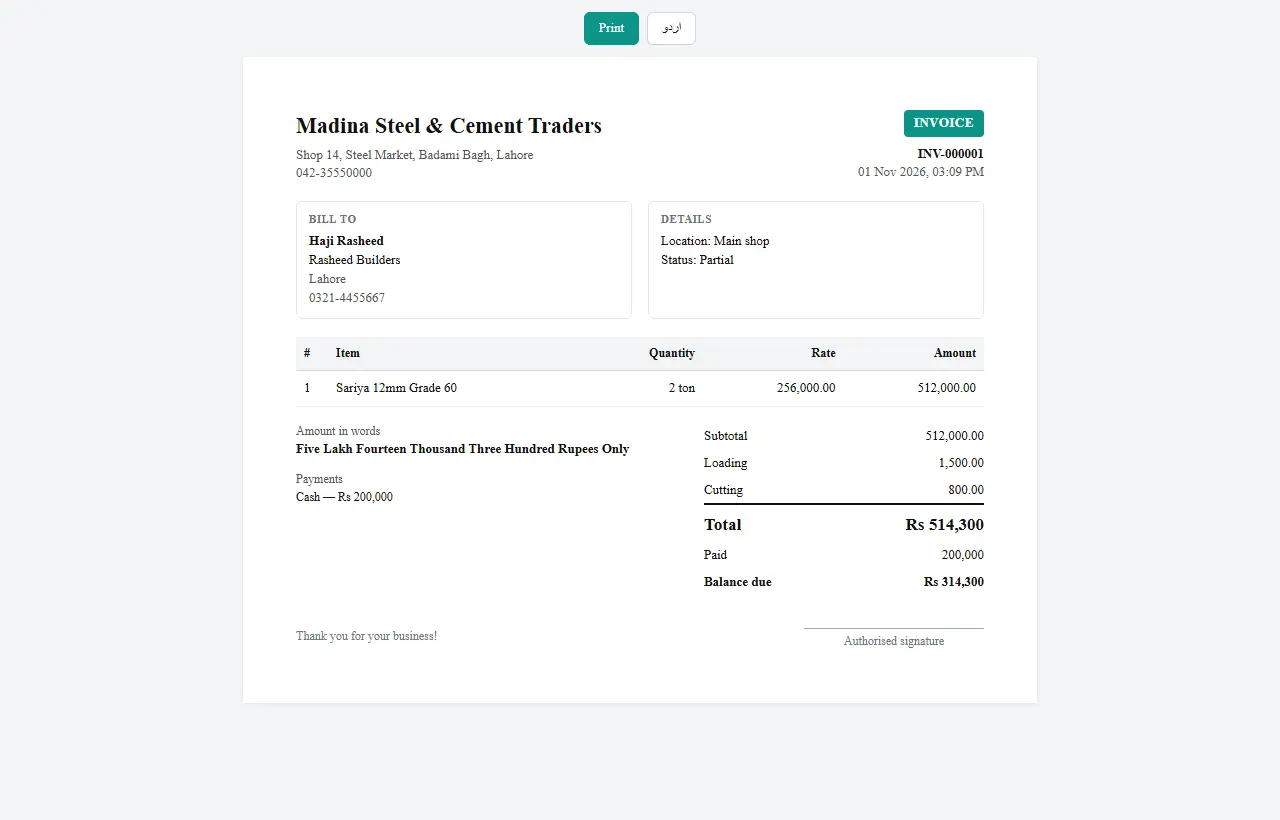
Send on WhatsApp opens WhatsApp with a message and a secure link. The customer opens the invoice on their phone without any login. Invoices print in English or Urdu (choose in Business settings).
Sales list
Sales lists every invoice: number, date, customer, total, amount due, status and delivery.

Filter by customer, With balance due, status or dates. The ⋮ menu on each row has print, WhatsApp, receive payment, return, deliver and cancel.
A sale's page
Open any sale to see items, charges, payments, balance due and profit.
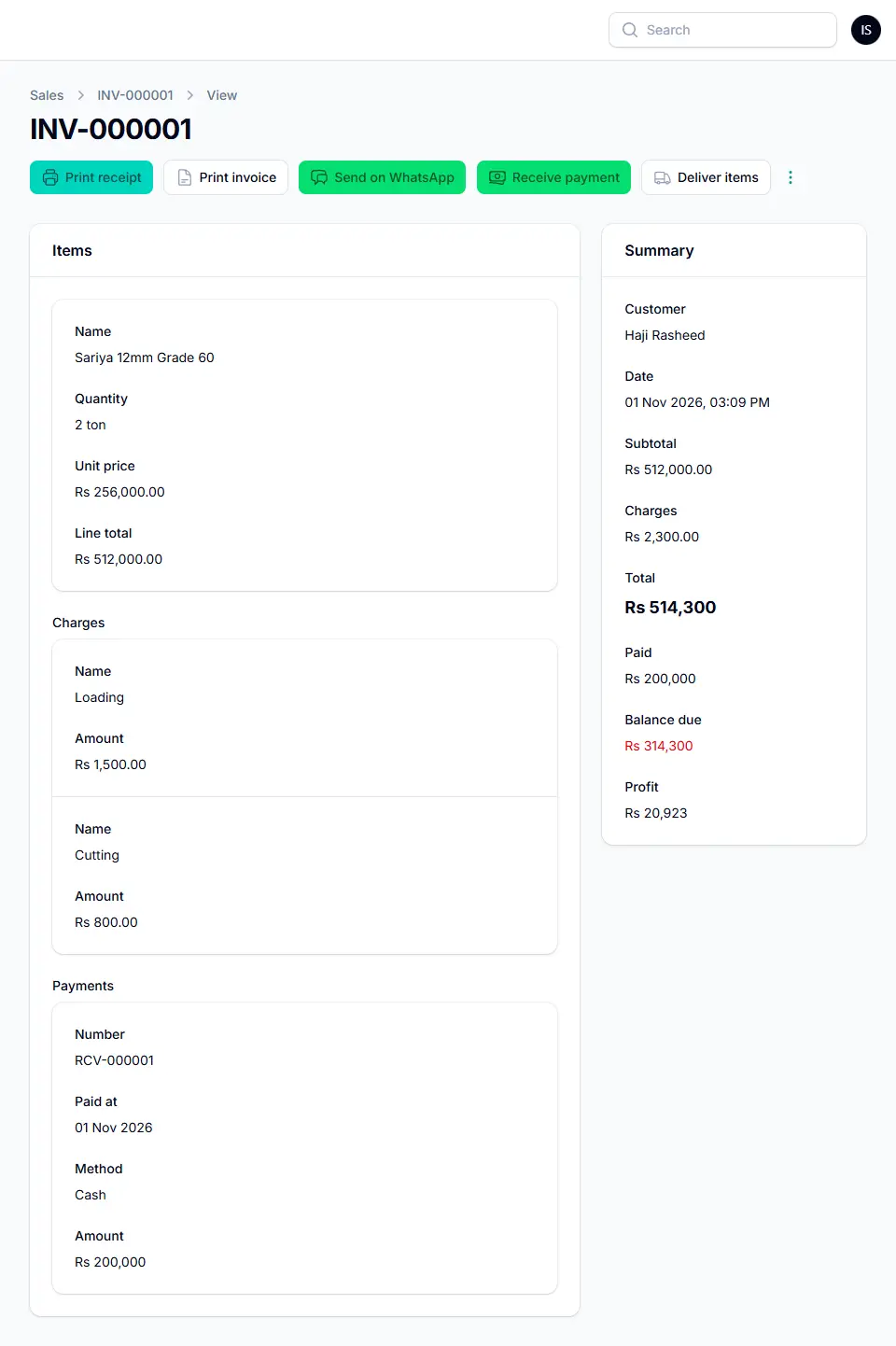
From the buttons at the top:
- Receive payment: record money received later against this invoice.
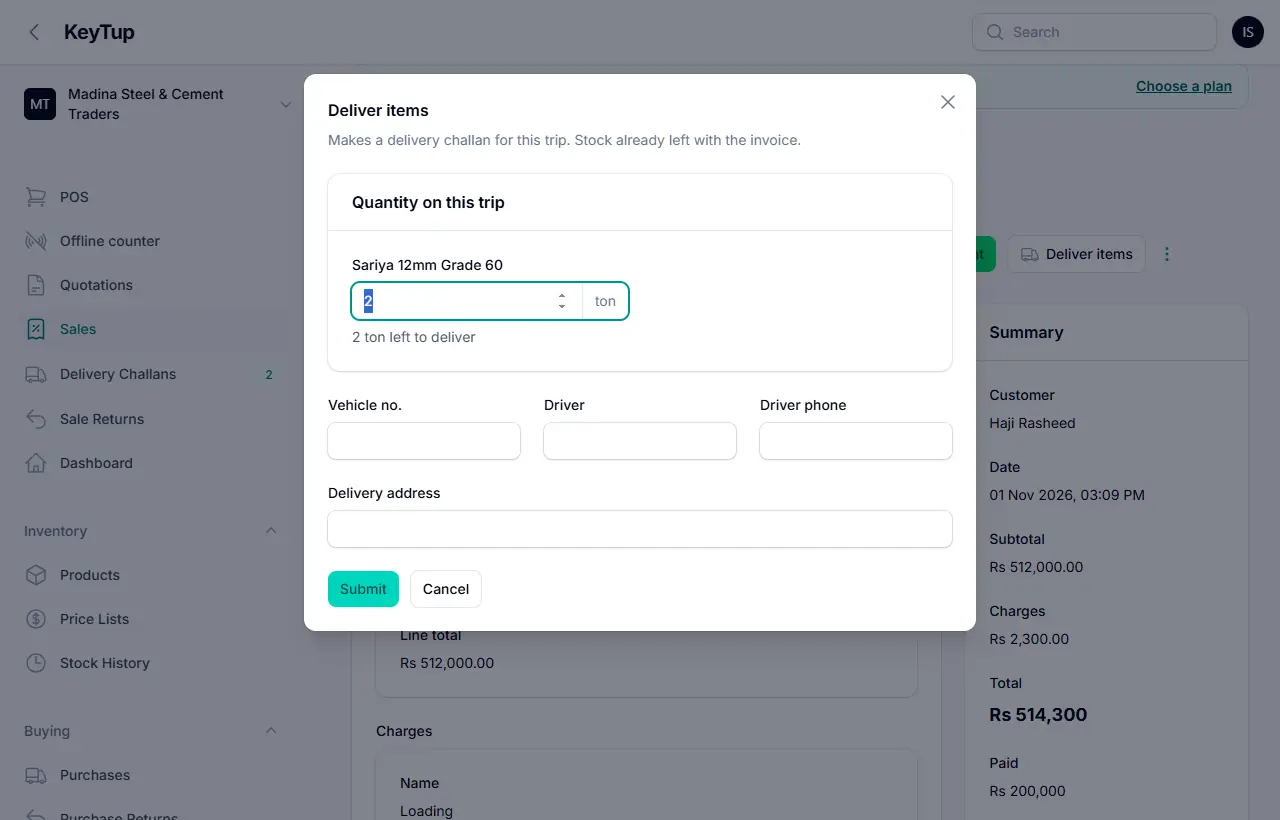
- Deliver items: send the goods in one or more trips; each trip makes a challan with vehicle and driver.
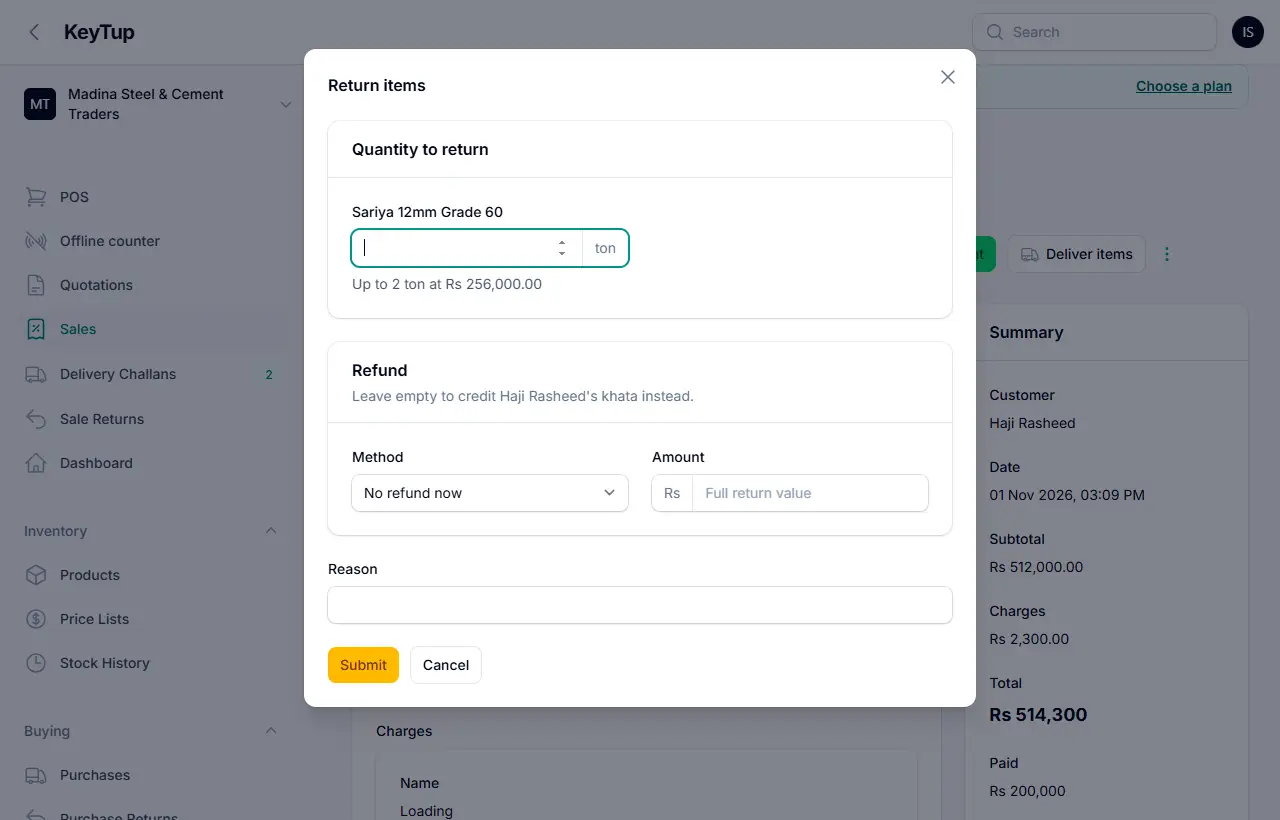
- Return items (⋮ menu): take back some or all items. Stock comes back and the customer's khata is credited, or you refund money. Walk-in customers are refunded the full return value.
- Cancel sale (⋮ menu, managers and owners): stock goes back and the customer's khata is reversed. Payments already received stay on record as an advance.
Sales are never edited or deleted, so your records can always be trusted. To correct a sale, cancel it or return items, then make a new one.
Quotations
Quotations lists every quote with its total, valid until date and status.

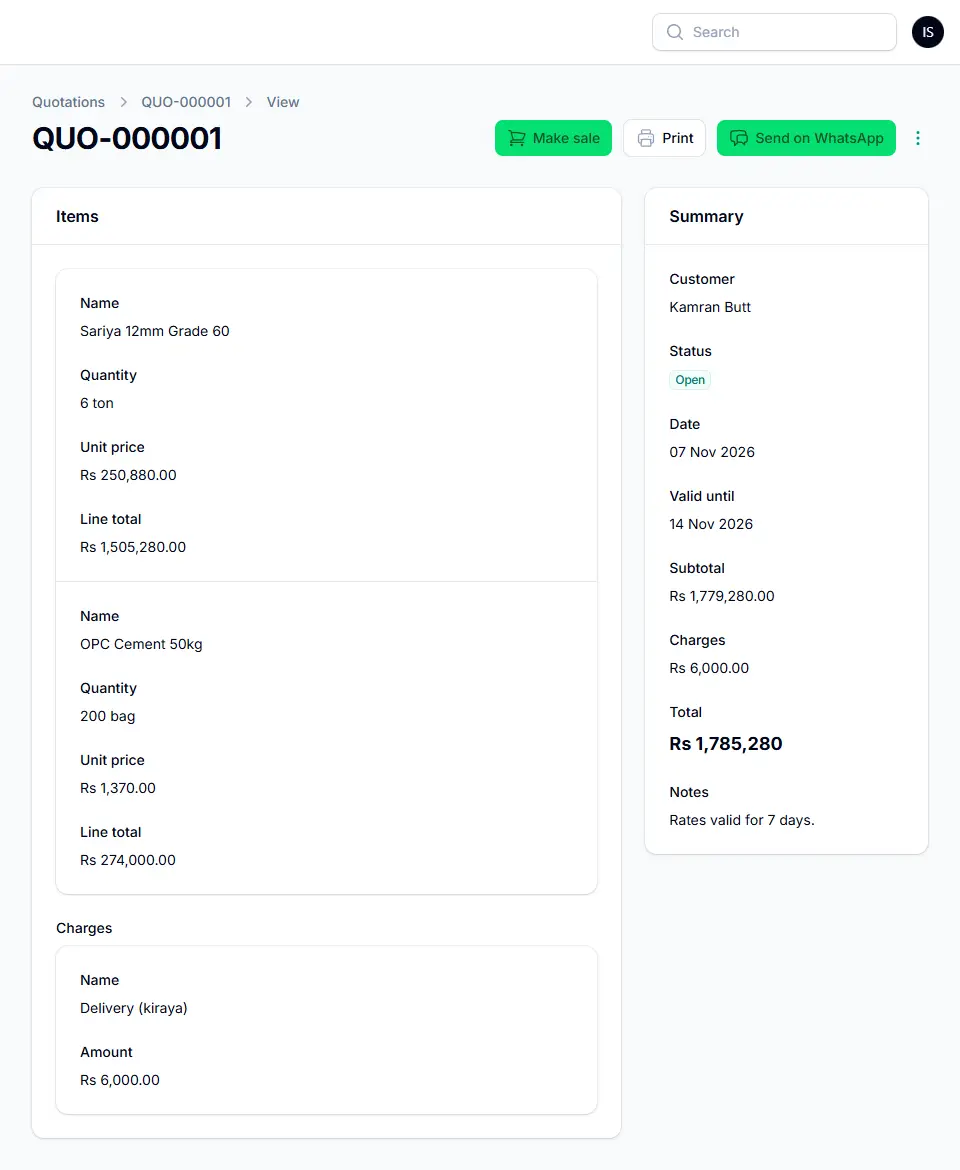
- Make sale opens the POS with the quotation's items and prices; completing the sale marks the quote as accepted.
- Print gives an A4 quotation; Send on WhatsApp shares a link the customer opens without a login.
- Cancel quotation if the customer says no.

Delivery challans
A challan records goods leaving your shop or godown. There are two kinds:
- Delivery of an invoice: from a sale's Deliver items. Use it when a big order goes in several trucks.
- Goods first ("Deliver now, bill later"): goods go before the bill. These wait as open challans until you invoice them.
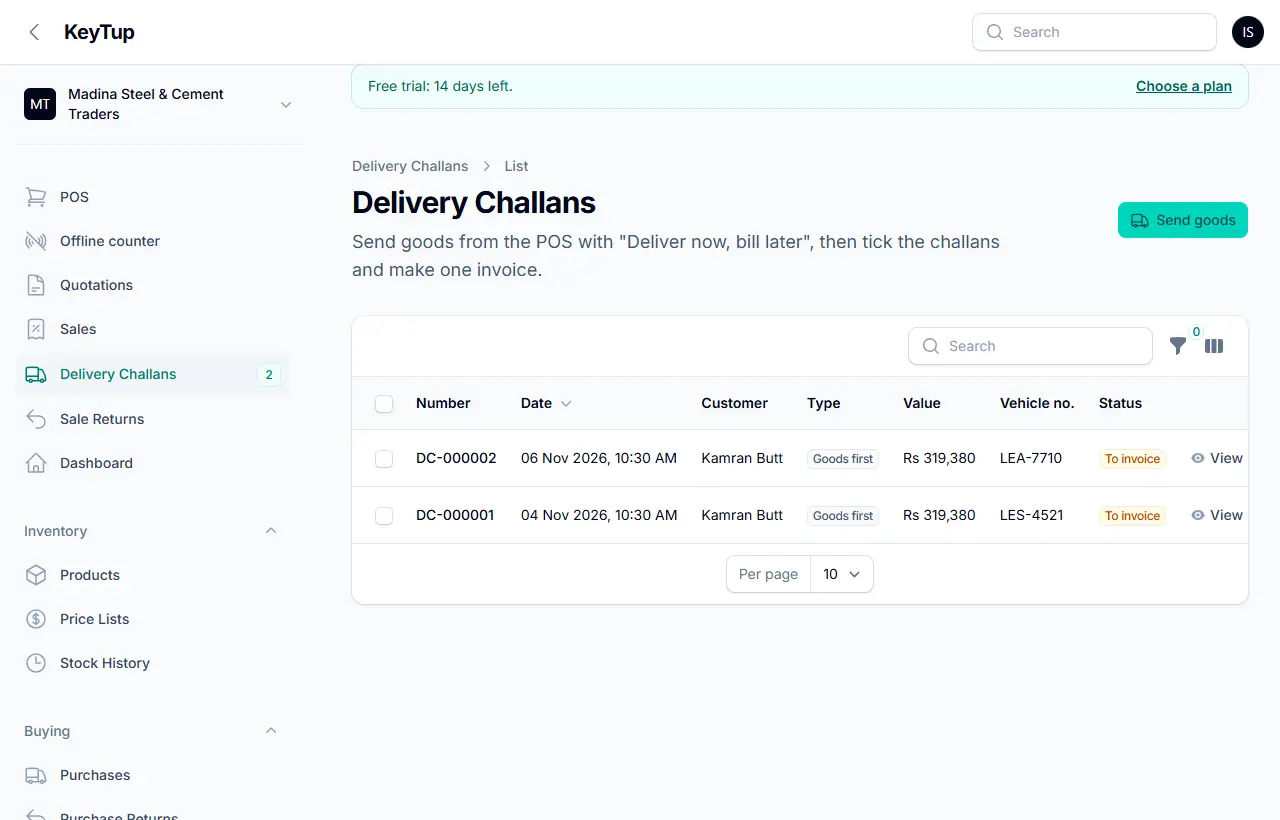

Billing a customer's challans: tick the open challans of one customer and press Make invoice. Add delivery charges, discount and any payment received now. KeyTup makes one invoice for all of them.

Print challan gives a driver's copy with vehicle, driver and a space for the receiver's signature, without prices. Send on WhatsApp shares it with the customer. Cancel challan brings the stock back; once a challan is invoiced it cannot be cancelled, so return the goods on the invoice instead.

Sale returns
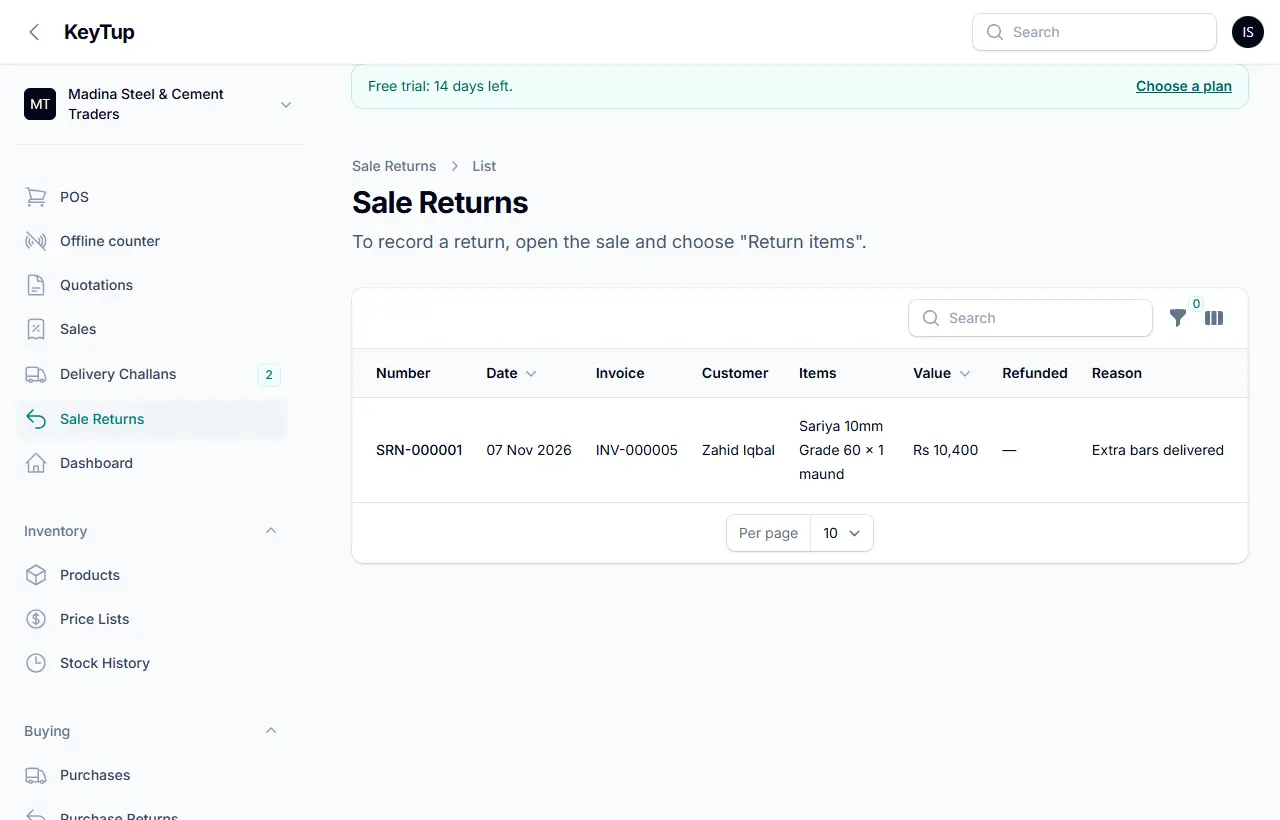
Sale Returns lists every return with the invoice, items, value, refund and reason. To record one, open the sale and choose Return items.
Offline counter
If your internet is weak, open Offline counter from the menu. It is a simple POS that keeps working without internet.
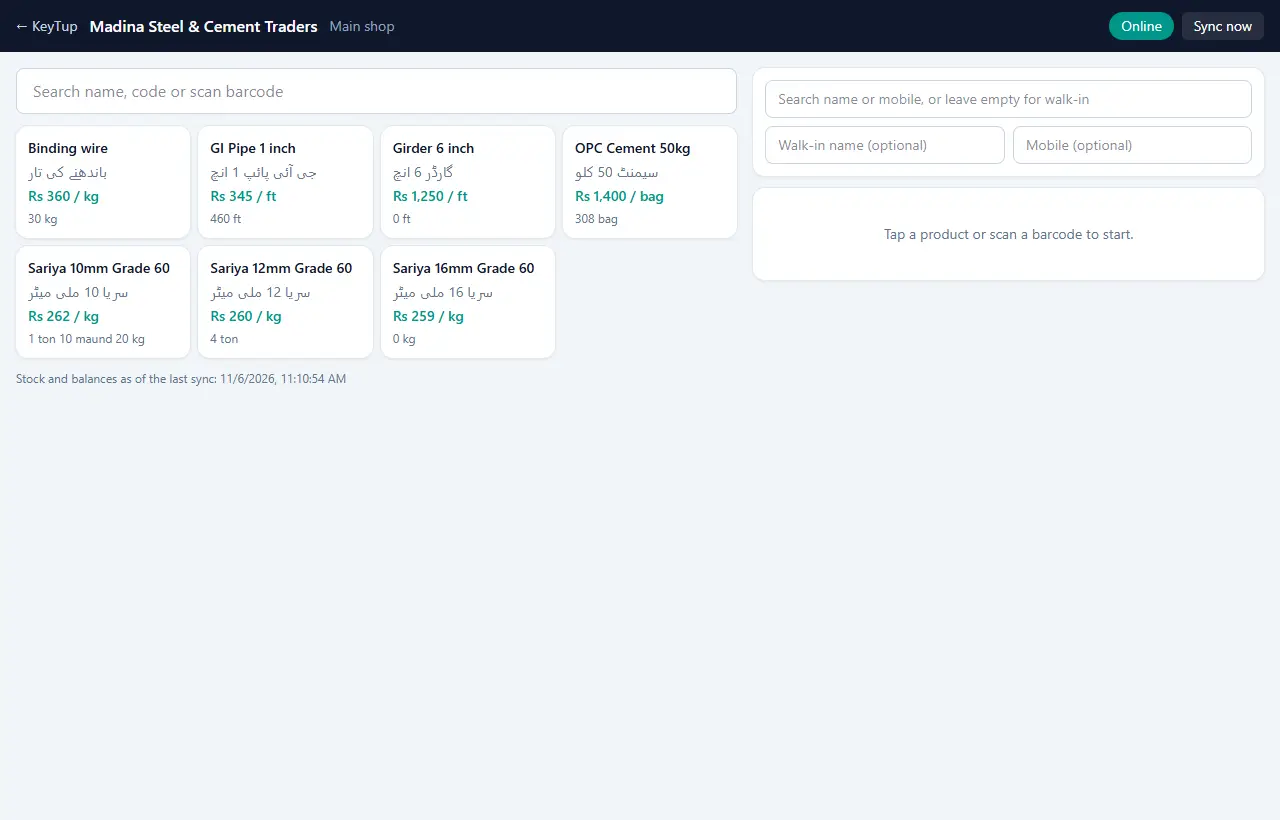
- Open it once while online so it downloads your products and customers.
- Without internet it shows Offline — sales are saved on this device. Sell as normal: cash, bank or udhaar.
- When the internet is back, sales are sent automatically (or press Sync now). A sale is never recorded twice.
- If the server cannot accept a sale (for example a customer over the credit limit), it is listed so you can enter it on the main POS.
Stock
Products
Products lists everything you sell, with item code, category, stock in trade units (for example 13 ton 10 maund 20 kg) and sale price.

Filter by category, brand or Low stock. The ⋮ menu on each row has Adjust stock, Transfer and Stock history.
Adding or editing a product

- Name and Name in Urdu (printed on Urdu invoices), category, brand, item code.
- Type: Stock for goods; Service for things like cutting or labour that have no stock.
- Stock is counted in: the smallest unit you count in, for example kg for sariya, bag for cement, ft for pipe.
- Low stock alert at: when stock falls to this level, it shows on the dashboard.
- Sales tax % and Active.
- Selling units & prices: one line per unit you sell in. For each: the unit, how many base units are in one (1 maund = 40 kg, 1 ton = 1,000 kg), sale price, purchase price, barcode, and which unit is the default.
Why base units? KeyTup keeps stock in the base unit and shows it in the units you trade in. Sell 2 ton and 5 maund on one bill, and the stock comes down by exactly 2,200 kg.
When FBR digital invoicing is on, the product also has HS code, FBR unit, Sale type and FBR rate.
Adjusting and moving stock
Use Adjust stock when stock changes outside a sale or purchase:
- Stock added: opening stock, or goods found.
- Stock removed: damage, loss, own use.
- Counted stock: after a physical count, enter what you counted; KeyTup records the difference.
Enter a cost per unit to keep the average cost right, and always write a reason.

Transfer moves stock between your shop and godown(s); stock is counted separately at each location.
Import products from Excel
Have a long product list? Press Import from Excel on Products. Download the template, fill it in Excel (names, units, prices, opening stock), save it as CSV and upload it.

Stock history
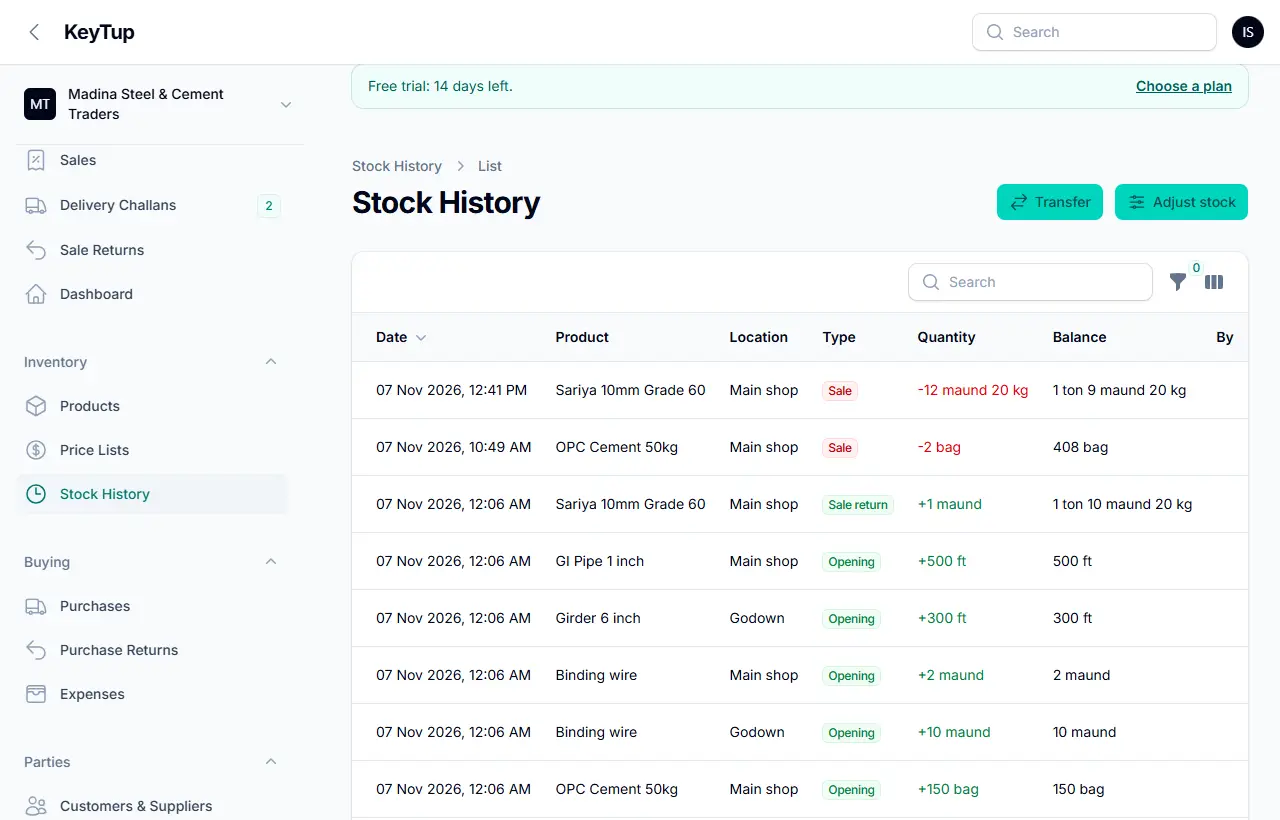
Stock History shows every movement: sales, purchases, returns, transfers, adjustments and challans, with the running balance and who did it. Filter by product, location, type or date. It is the place to answer where did this stock go?
Price lists and rate lists
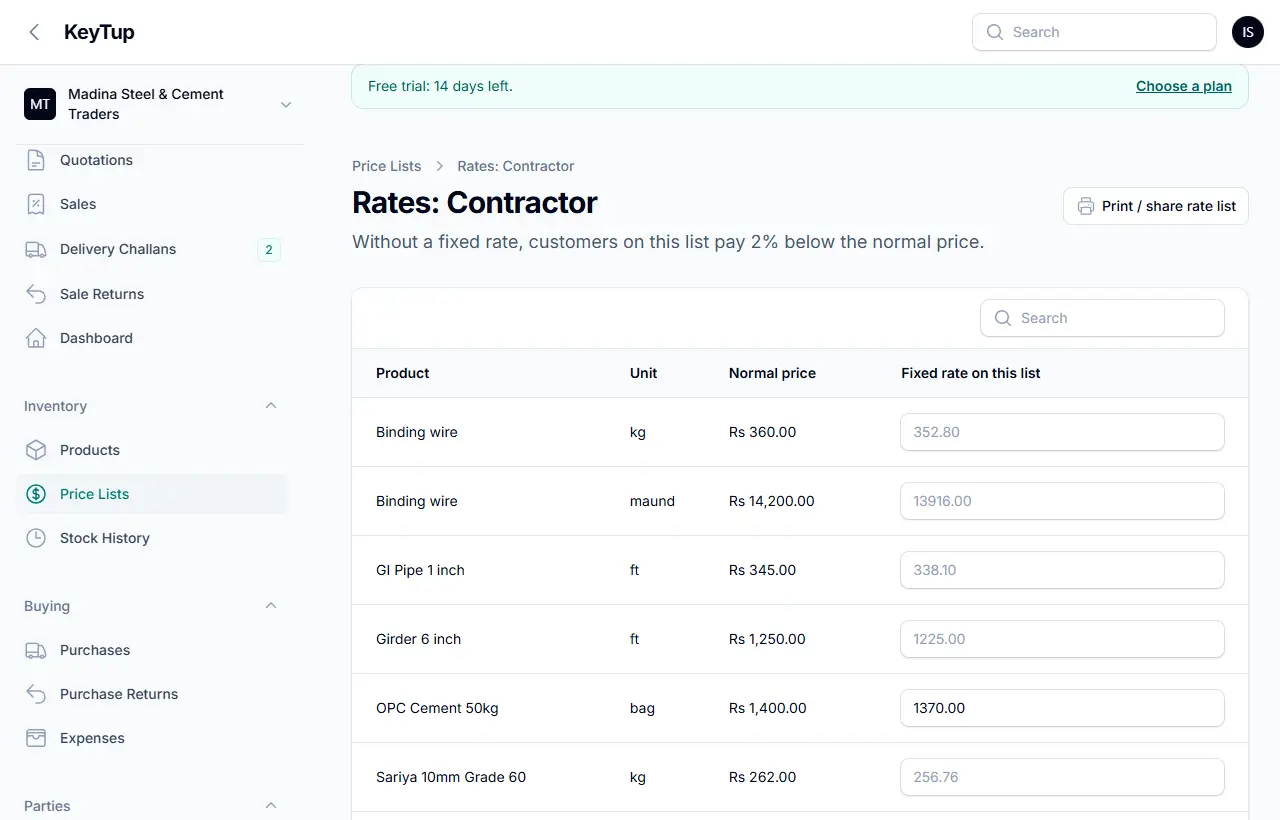
Different customers, different rates. A price list (Dealer, Contractor, Wholesale…) is either a percentage on your normal prices (for example 2% below) or fixed rates for chosen products, or both.

- Create the list with New price list and its percentage.
- Press Rates to set fixed rates for chosen products.
- Open the customer and choose the price list. The POS now uses those rates for them.
Today's rate list prints your prices for the day, normal or for a price list, with a Copy for WhatsApp button to send the rates to your customers' groups.

Buying
Purchases
Record stock you buy with New purchase.


- Choose the supplier, their bill number, date, and the shop or godown the goods arrive at.
- Add items with quantity, unit and rate.
- Add freight & charges (freight, kiraya, unloading) and any discount on the bill.
- Enter any payment now; the rest goes to the supplier's khata.
Landed cost: KeyTup spreads the charges over the items, so your stock cost includes freight. If your business is registered (has an STRN), input tax is kept out of cost.
The purchase page shows each item's landed cost, payments and balance due. Pay supplier records a later payment; Return to supplier sends goods back. Purchases cannot be edited; cancel and re-enter if something is wrong.

Returns to supplier
Purchase Returns lists goods sent back to suppliers. To record one, open the purchase and choose Return to supplier: stock goes down and the supplier's khata is credited, or they refund you.

Expenses
Record running costs with Add expense: rent, salaries, bijli, fuel, chai… Choose a category, amount, how it was paid and, if you like, who it was paid to. Expenses feed the profit and loss report. Anyone in the team can add one; only managers and owners can change or delete them.


Customers, suppliers and money
Customers and suppliers
Customers & Suppliers holds everyone you deal with. Tabs show customers, suppliers or all; the Balance column shows who owes what.

Add someone with New party, or bring your whole list across with Import from Excel.

- Type: Customer, Supplier, or Both (someone you buy from and sell to).
- Name, firm, Urdu name, mobile (for WhatsApp), city, address.
- Opening balance: what they owe today, before KeyTup. Positive if they owe you, negative if you owe them.
- Credit limit: the most udhaar you allow. 0 means no limit.
- Price list: their special rates.
- CNIC, NTN and STRN for tax invoices.
Khata (ledger)
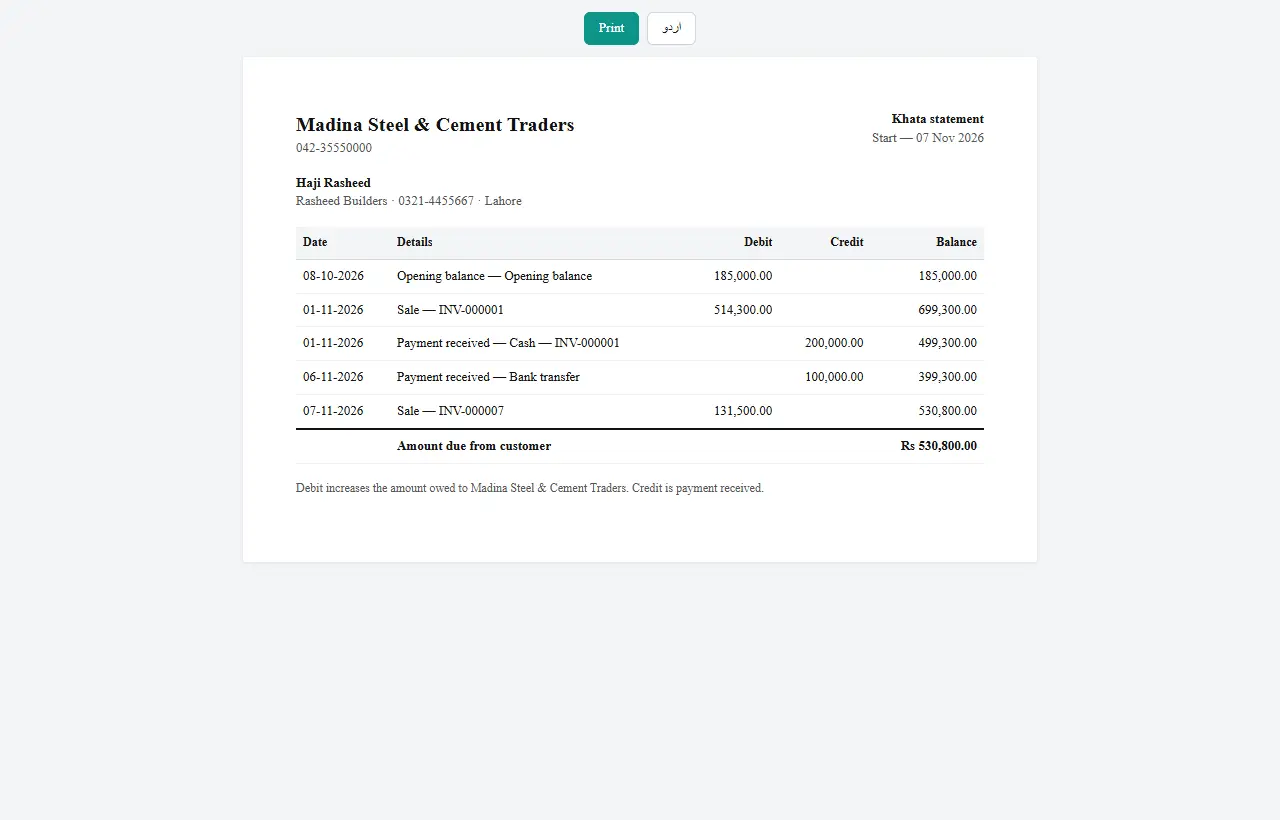
Press Khata on a customer or supplier to see their full account: opening balance, every sale or purchase, payment, return and cheque, with a running balance.

- Debit (red) increases what they owe you: sales, opening balance.
- Credit (green) reduces it: payments received, returns.
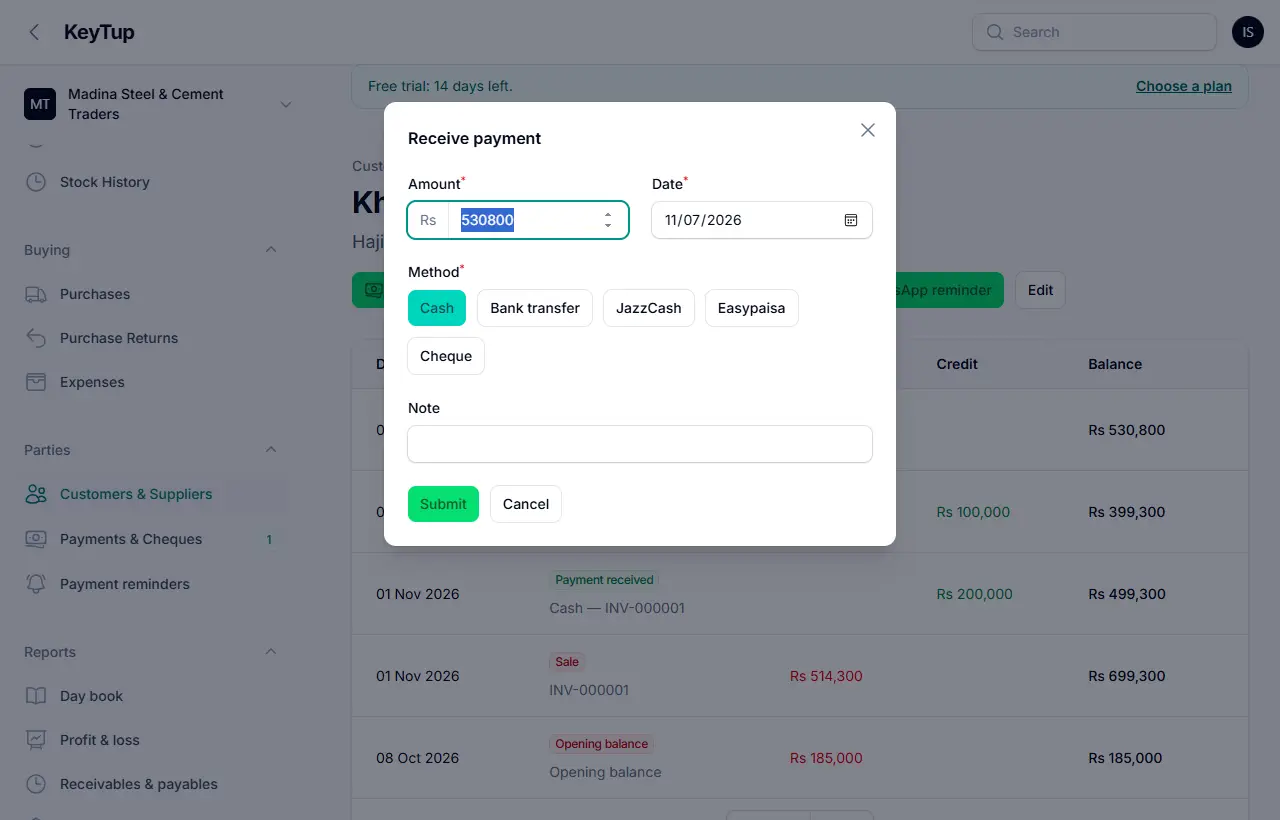
- The line at the top says it plainly, for example Haji Rasheed owes you Rs 530,800.
Receiving and making payments
On the khata: Receive payment for money from a customer; Make payment for money you pay a supplier. Choose cash, bank transfer, JazzCash, Easypaisa or cheque.
Statement prints the khata for a date range to give to the customer. WhatsApp reminder opens WhatsApp with a polite message showing what they owe.
Payments & cheques
Payments & Cheques lists every payment in and out. The Pending cheques tab shows post-dated cheques.

How cheques work: a cheque is recorded when you receive it, but it reaches the khata only when you press Mark cleared. If it bounces, press Mark bounced; the khata is not touched and you can follow up. Cheques due soon also show on the dashboard.
Payment reminders
Payment reminders lists customers who owe you, how long they have owed and when they were last reminded. Those due for a reminder are shown first (by default: unpaid for 15 days and owing at least Rs 1,000; change this in Business settings).
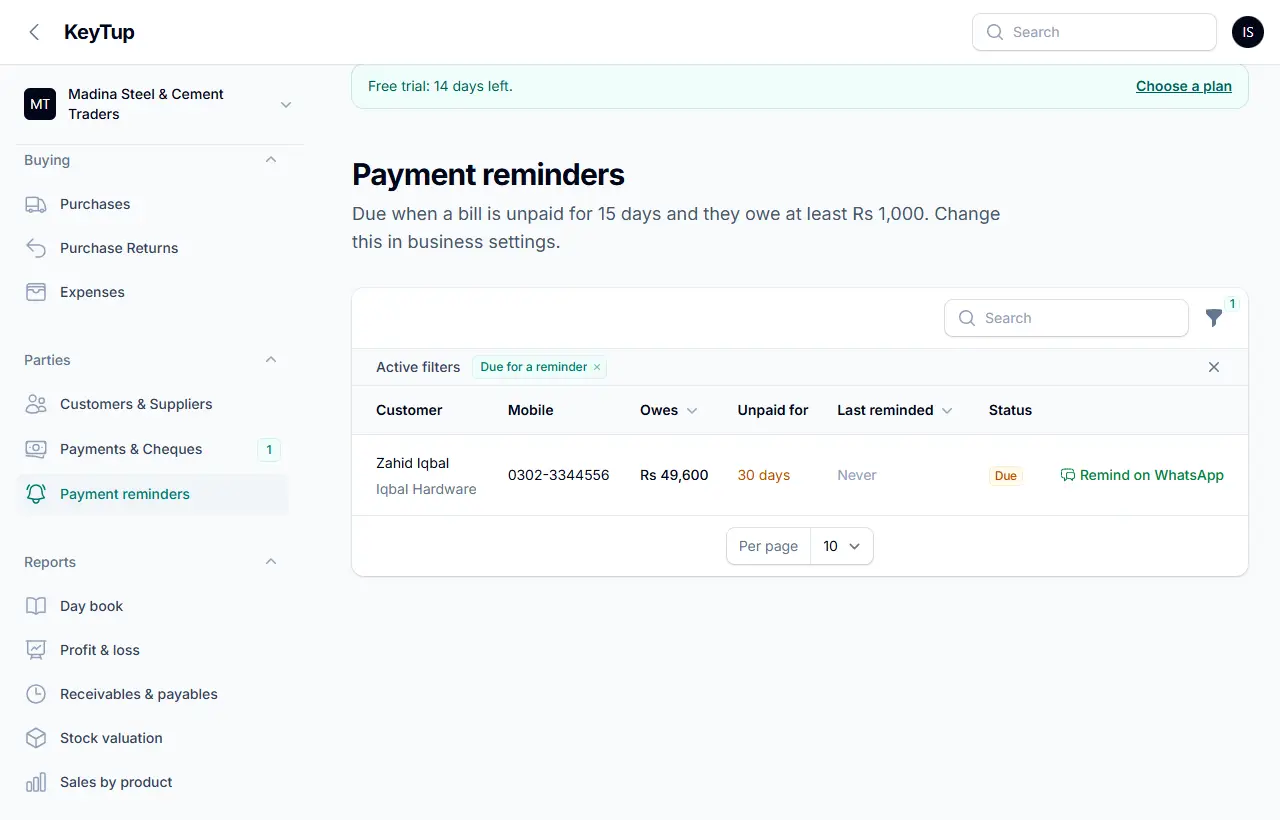
Press Remind on WhatsApp to open a ready message on your phone. On the Business plan you can switch on automatic reminders, which KeyTup sends every day at 11:00 through the WhatsApp Business API (see WhatsApp).
Reports
Reports are for owners and managers. Choose the dates at the top of each one.
Day book (roznamcha)
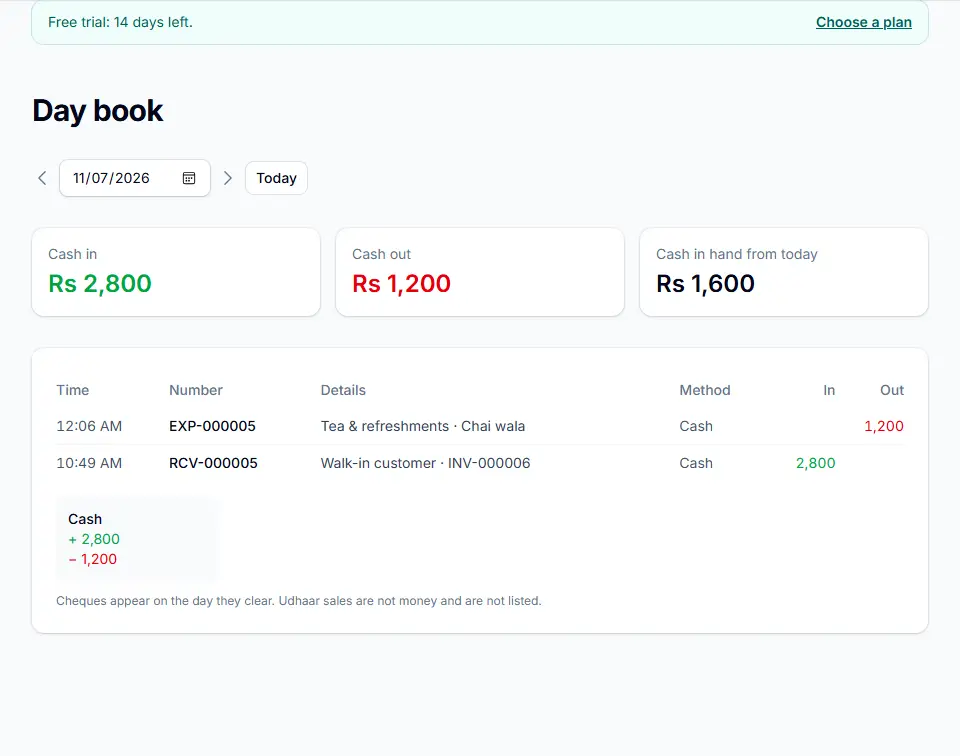
Every rupee in and out for one day: cash sales, payments received and made, expenses, with the method, and the cash in hand at the end. Use Previous day and Next day to move between days, and close the cash with it at night. Udhaar sales are not money, so they are not listed; cheques appear on the day they clear.
Profit and loss
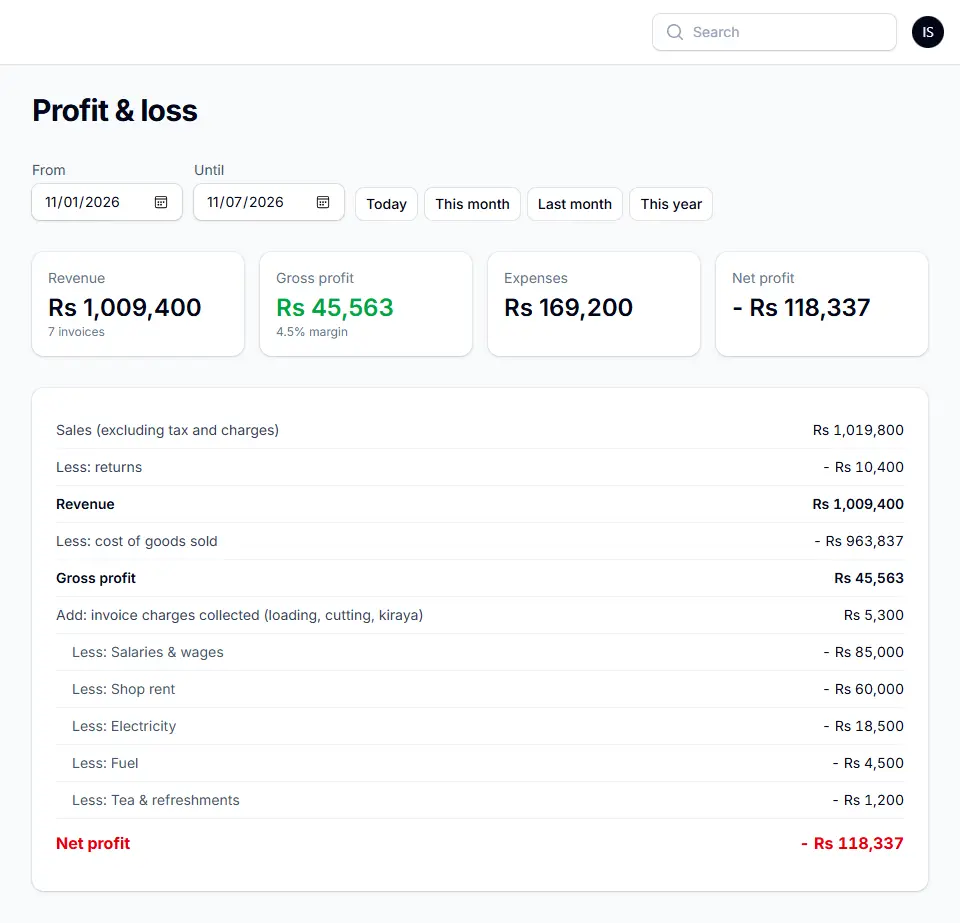
For any period: sales (without tax and charges), less returns, plus invoice charges collected (loading, cutting, kiraya), less cost of goods sold = gross profit; then expenses by category = net profit. Sales tax collected is shown separately, because it is payable to FBR and is not income.
Receivables and payables
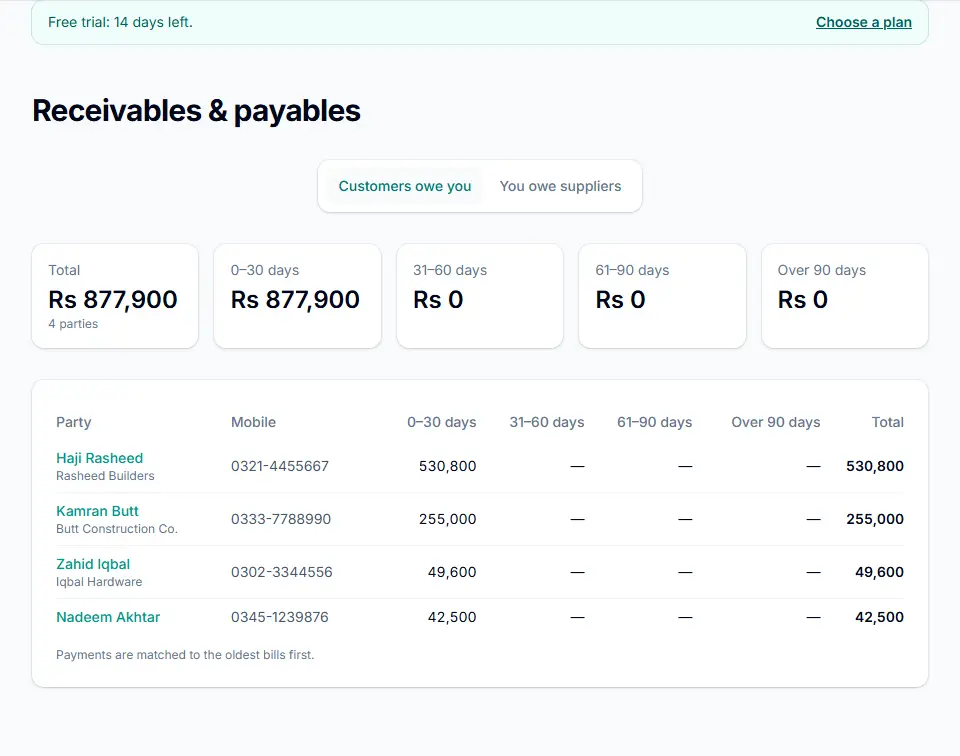
Who owes you, and whom you owe, split by age: 0–30, 31–60, 61–90 and over 90 days. Start your calls from the right-hand columns.
Stock valuation
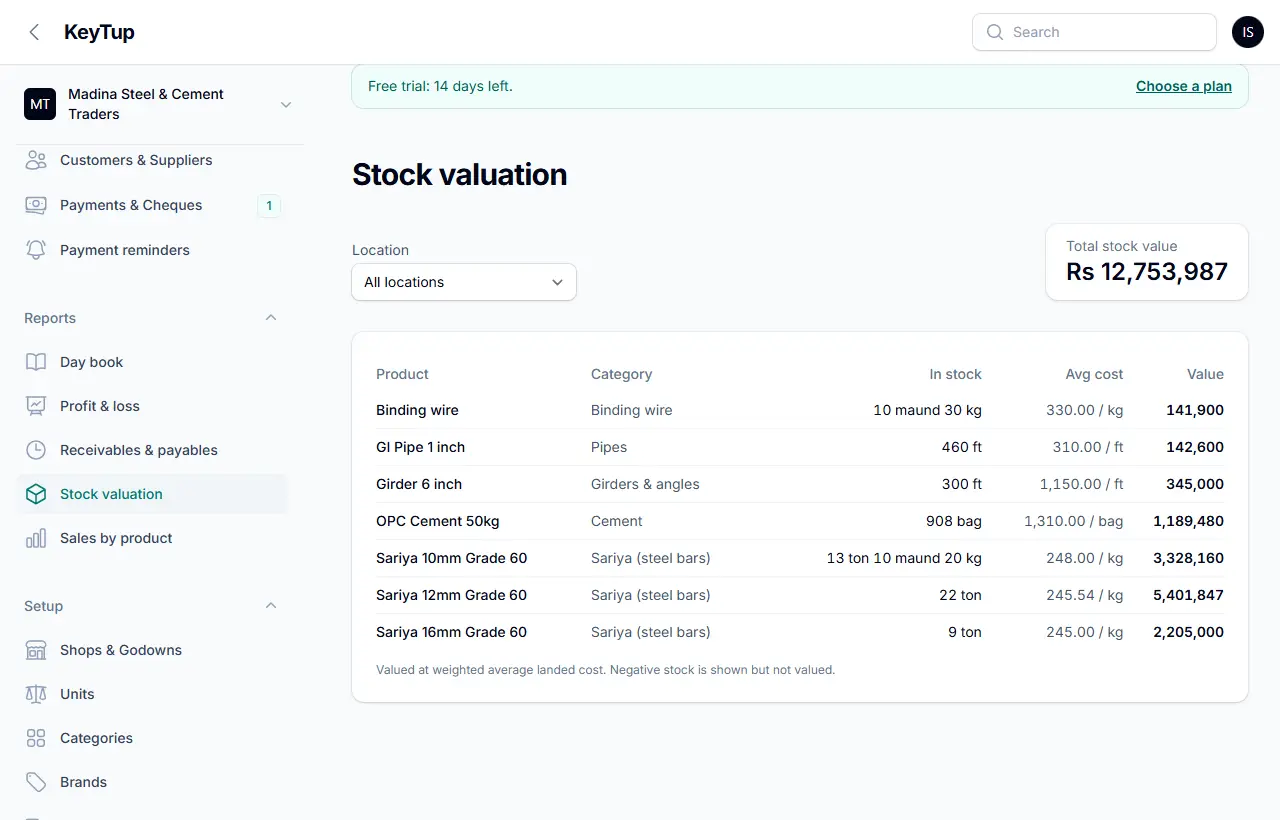
Every product's stock and its value at average cost, for all locations or one.
Sales by product
Quantity sold, revenue, cost, profit and margin for each product. Shows what really earns money.

Setup
Business settings
Owners open Business settings from the business name at the top of the menu.
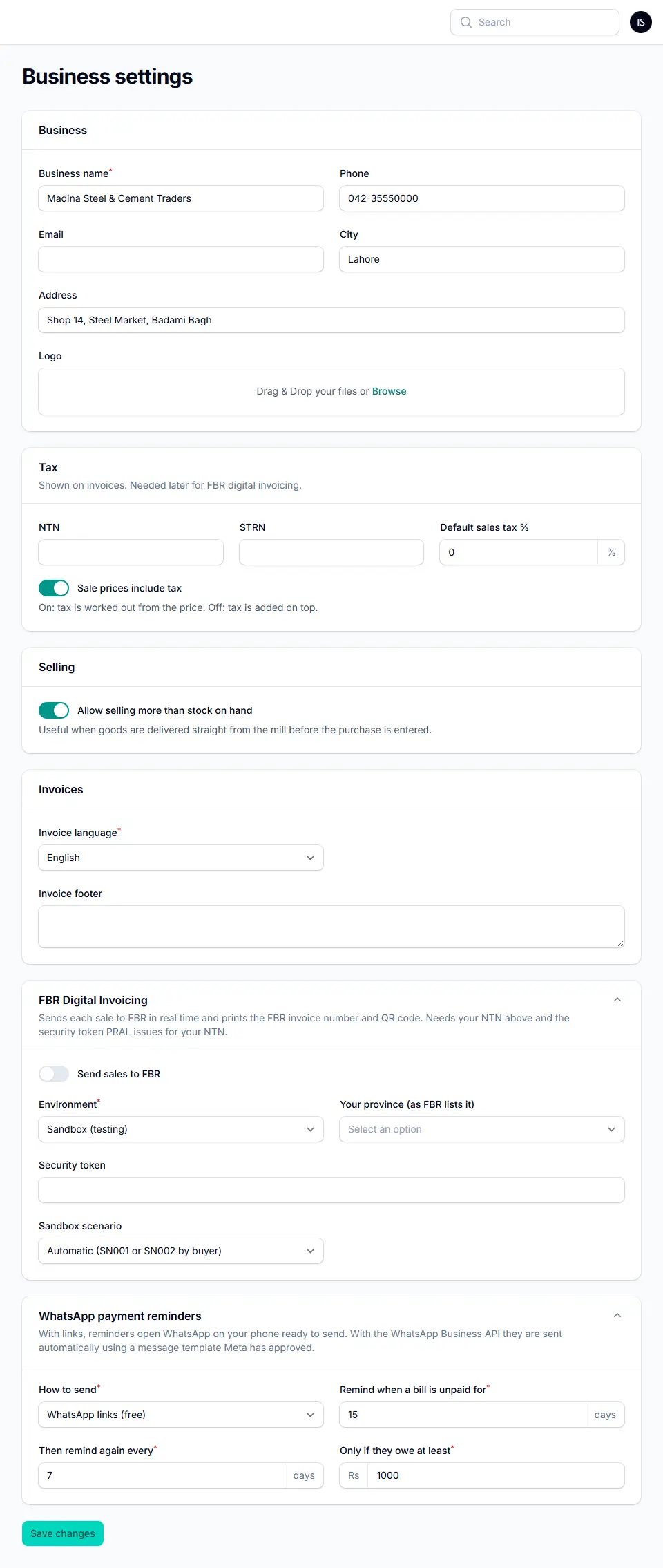
- Business: name, phone, email, city, address and logo. These print on every invoice.
- Tax: NTN, STRN, default sales tax %, and whether sale prices include tax (on: tax is worked out from the price; off: tax is added on top).
- Selling: Allow selling more than stock on hand, useful when goods go straight from the mill before the purchase is entered.
- Invoices: invoice language (English or Urdu) and a footer line (terms, bank details).
- FBR Digital Invoicing and WhatsApp payment reminders: see FBR and WhatsApp.
Shops and godowns
Add each place you keep stock: your shop and any godowns. One is the default for the POS. Stock is kept separately for each, and you choose the location on the POS and on purchases. Your plan sets how many you can have.

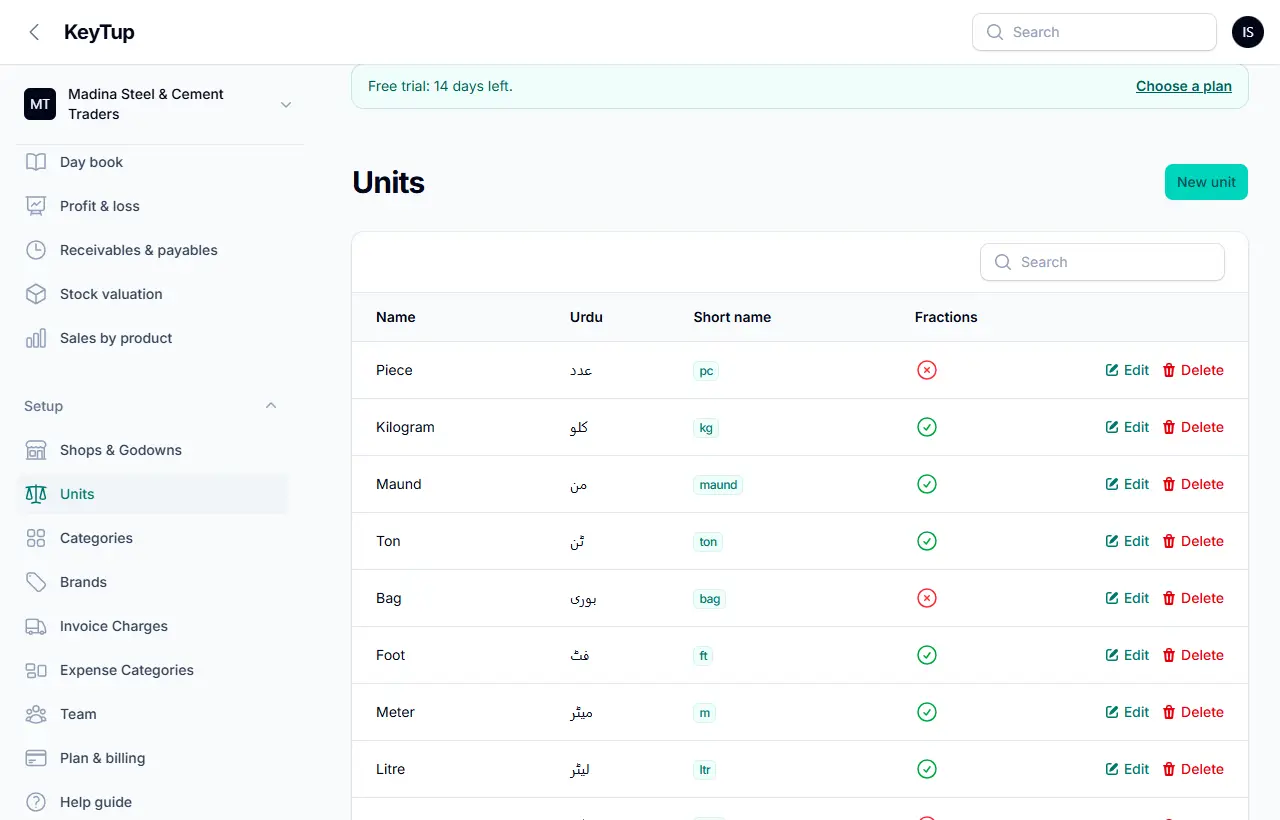
Units
The units you trade in, with Urdu names and whether fractions are allowed (for example 2.5 kg yes, 2.5 bags no).
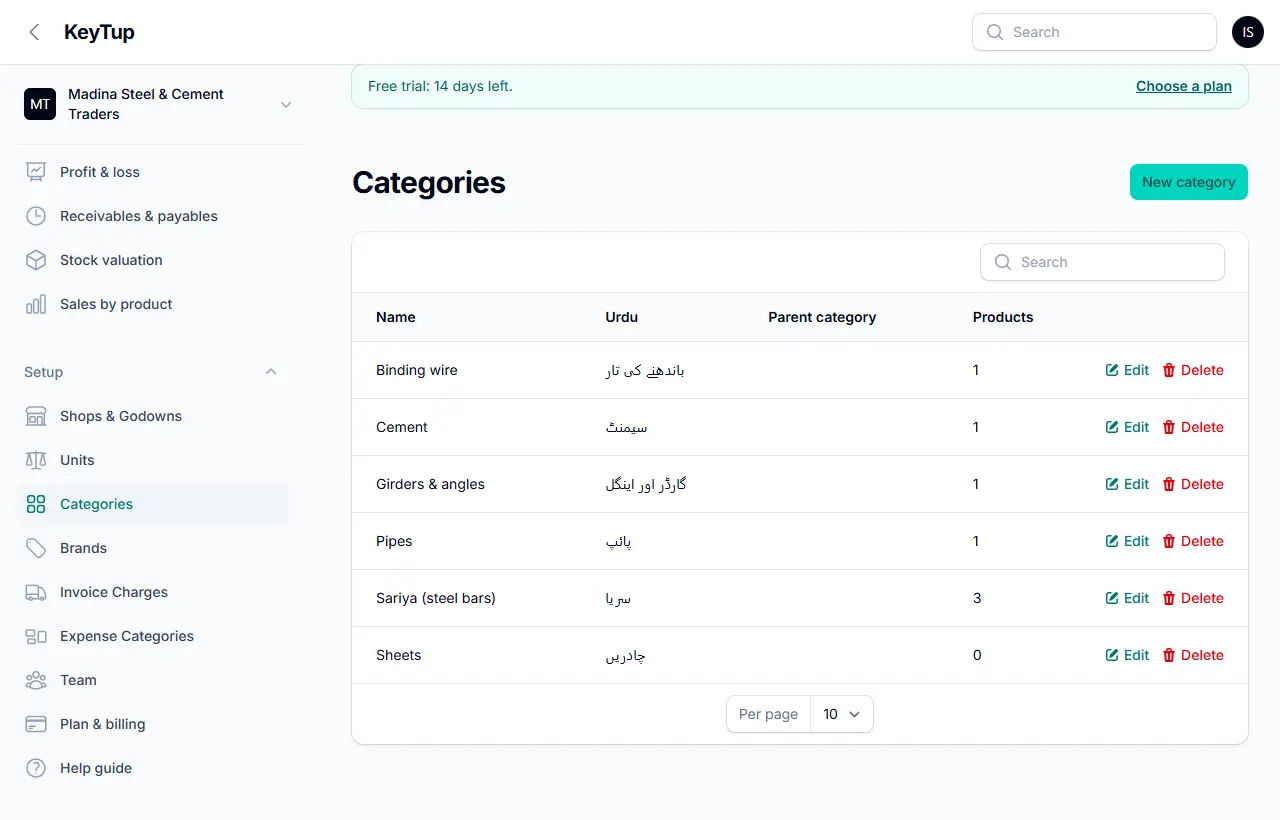
Categories and brands
Group products for the POS buttons, filters and reports.

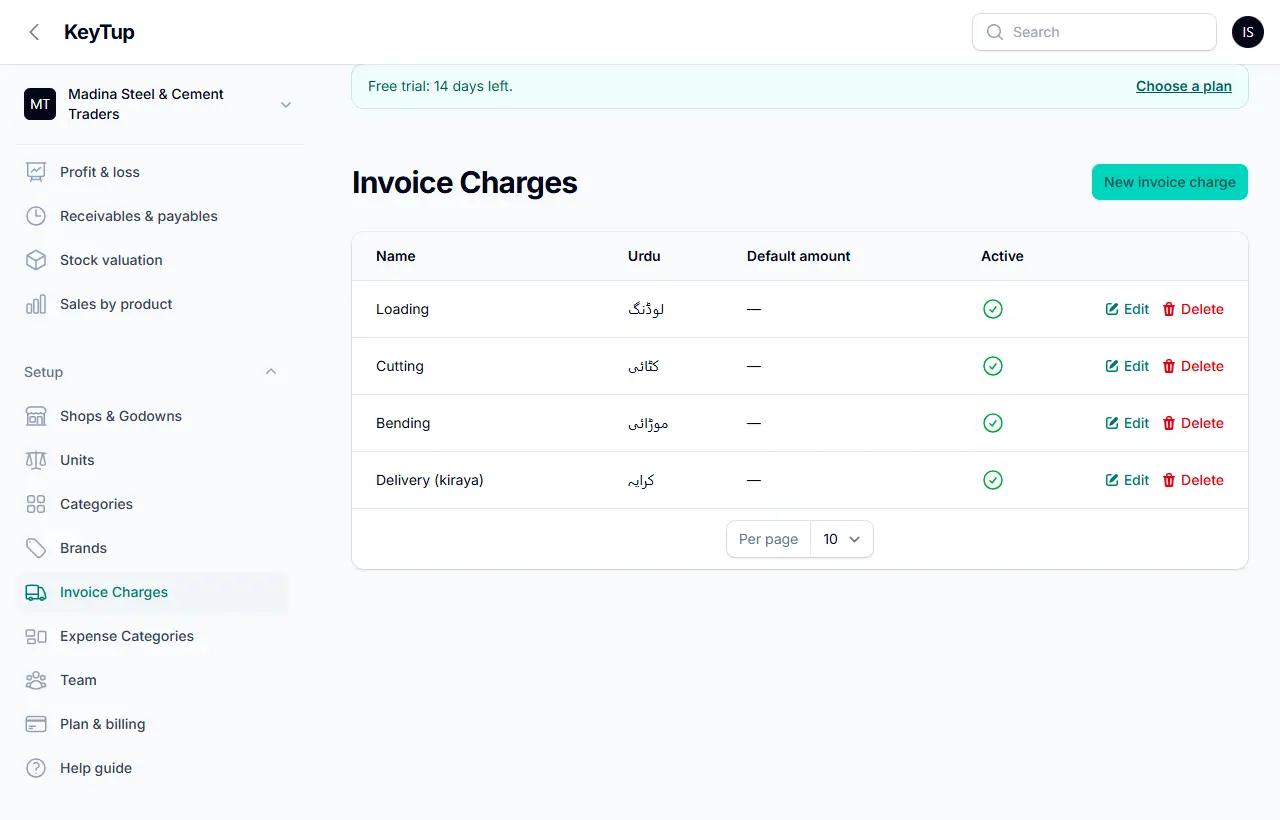
Invoice charges
The quick charge buttons on the POS: loading, cutting, bending, kiraya and your own, with an Urdu name and an optional default amount.
Expense categories
Your own headings for expenses (rent, salaries, bijli, fuel…), used in the profit and loss report.

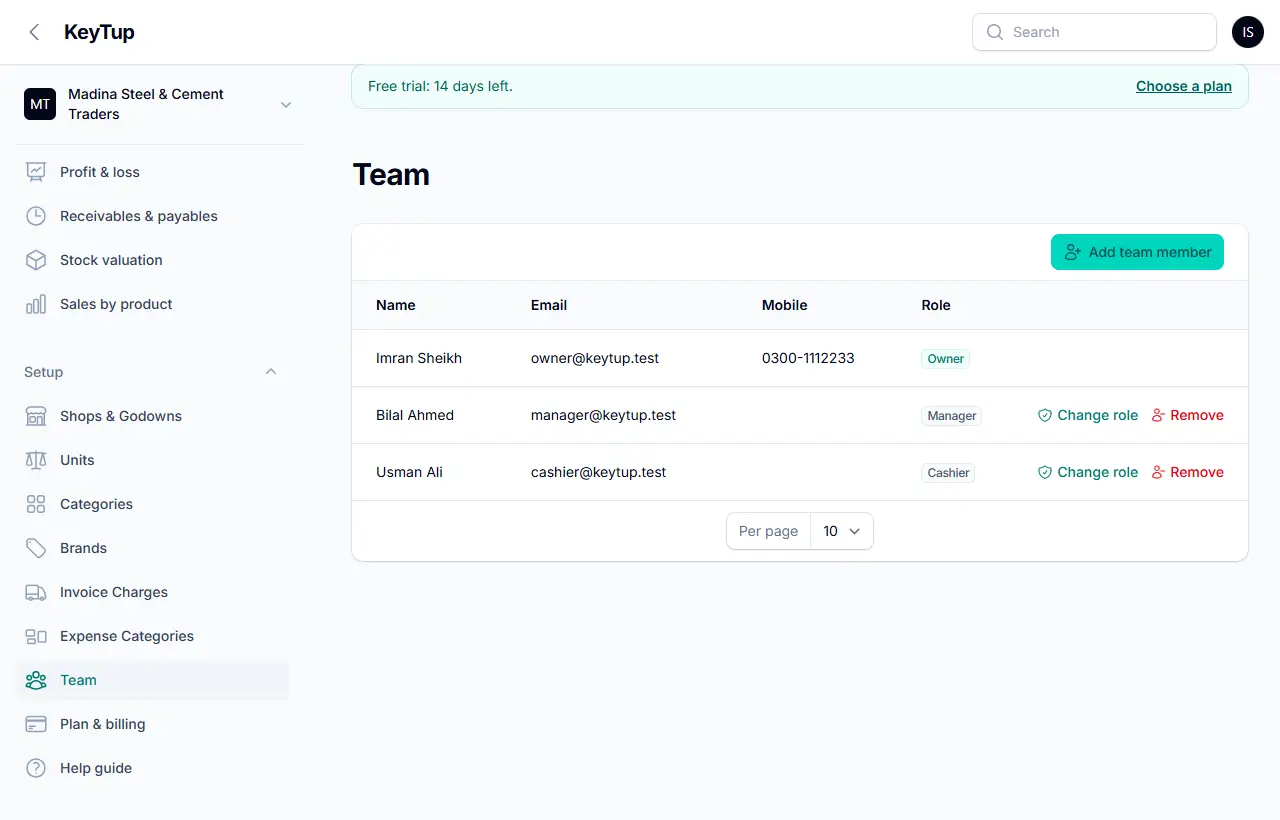
Team
Owners add people with Add team member: name, email, mobile, role, and a password if they don't have a KeyTup login yet. Change role or Remove at any time. Your plan sets how many people you can add.
Plan and billing
Plan & billing shows your plan, when your trial or paid period ends, where to pay, and your past payments.
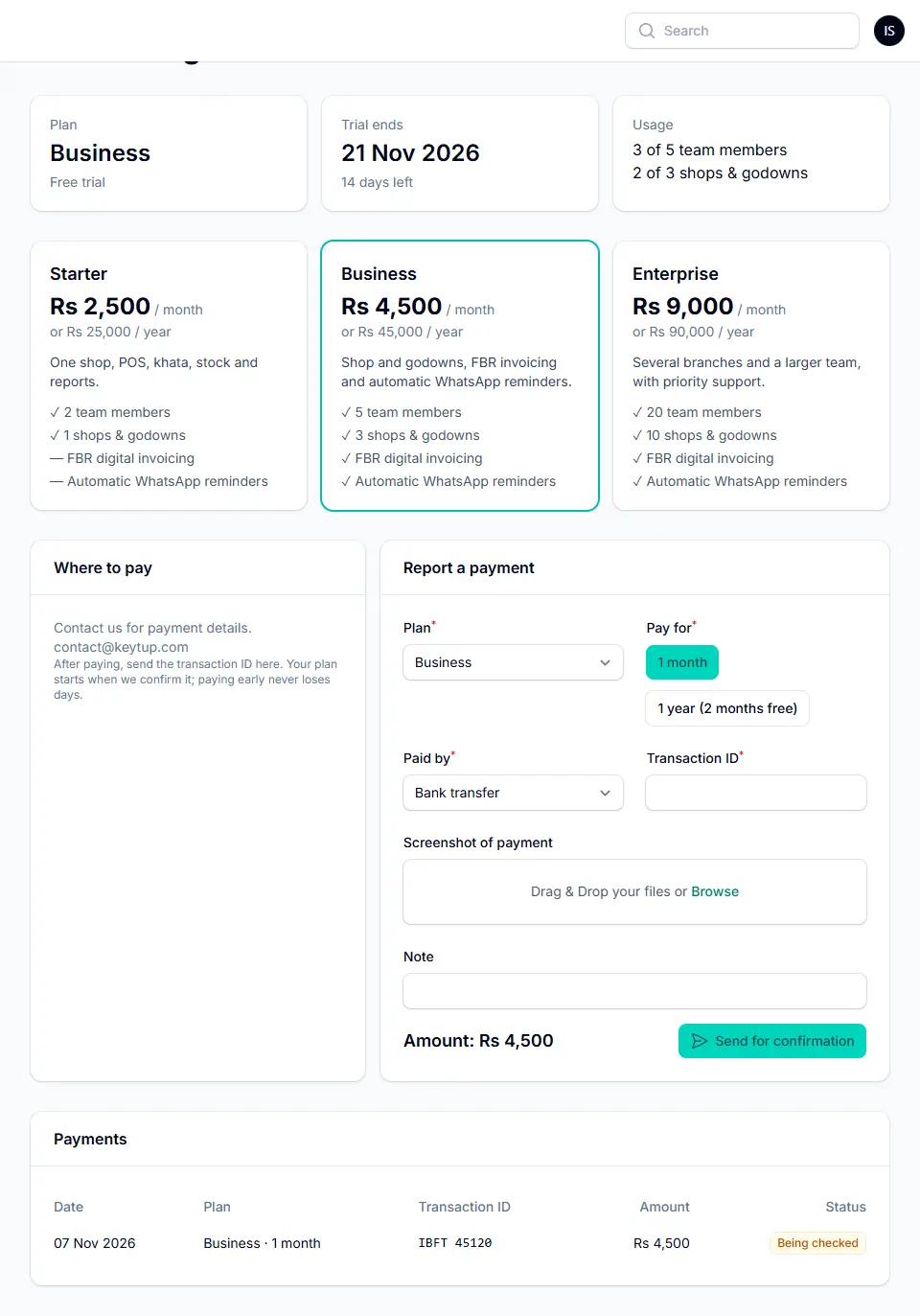
To pay:
- Choose a plan and 1 month or 1 year (2 months free). The amount shows.
- Send the money to one of the accounts under Where to pay (JazzCash, Easypaisa or bank).
- Enter Paid by, the transaction ID and a screenshot, then press Send for confirmation.
- KeyTup confirms it, usually within a few hours, and your paid period starts. Pay early and the new period is added after the current one, so you lose nothing.
If your period ends, you get a few days' grace; after that KeyTup opens Plan & billing until payment is confirmed. Your data is never deleted.
FBR digital invoicing
For businesses registered with FBR's Digital Invoicing (PRAL). Available on the Business and Enterprise plans.
- In Business settings, fill in your NTN and STRN.
- Under FBR Digital Invoicing, turn on Send sales to FBR, choose Sandbox (testing) or Production, your province, and paste the security token PRAL issued for your NTN.
- Press Test FBR connection.
- On each product, fill in the HS code, FBR unit and sale type.
From then on, every sale is sent to FBR as soon as it is saved. The FBR invoice number and the required QR code print on the receipt and invoice. If FBR is down, KeyTup keeps trying every 15 minutes; you can also press Send to FBR on the sale.
Start with Sandbox and make a few test sales before switching to Production.
KeyTup uses WhatsApp in two ways:
- Links (every plan): buttons such as Send on WhatsApp and Remind on WhatsApp open WhatsApp on your phone or computer with the message ready; you press send. Invoices, quotations and challans go as a secure link the customer opens without logging in.
- Automatic reminders (Business plan): in Business settings, choose the WhatsApp Business Cloud API and enter your phone number ID, access token and an approved message template. KeyTup then sends payment reminders every day by itself, following your rules (after how many days, how often, minimum amount).
Customers' mobiles must be saved on their record for WhatsApp to work.
Common questions
Can I use KeyTup on my phone? Yes. KeyTup works in the browser on phones, tablets and computers; nothing to install.
What happens if the internet goes? Use the Offline counter. Sales are saved on the device and sent when the internet is back.
Can I correct a sale? Sales cannot be edited, so nobody can quietly change a bill. Return items or cancel the sale (managers and owners), then make a new one.
How do I bring my old khata across? Add each customer with their opening balance, or import them all from Excel. The same for stock: use opening stock on products or the Excel import.
Can my cashier see profits? No. Reports, purchases and costs are for managers and owners only.
Is my data safe? Every business is completely separate, and nothing is ever deleted when a plan runs out. Your data stays yours.